Excel hell: Lessons learnt the hard way

I save all the sh*t about Excel here…
Precision loss for large integers
Let’s first create a csv like this:
whatever,col
9,123456789
10,1234567890
11,12345678901
12,123456789012
13,1234567890123
14,12345678901234
15,123456789012345
16,1234567890123456
17,12345678901234567
18,123456789012345678
19,1234567890123456789
. This should be super easy and have exactly no ambiguity at all. However, when we open it in Excel, it interprets col data type wrongly:
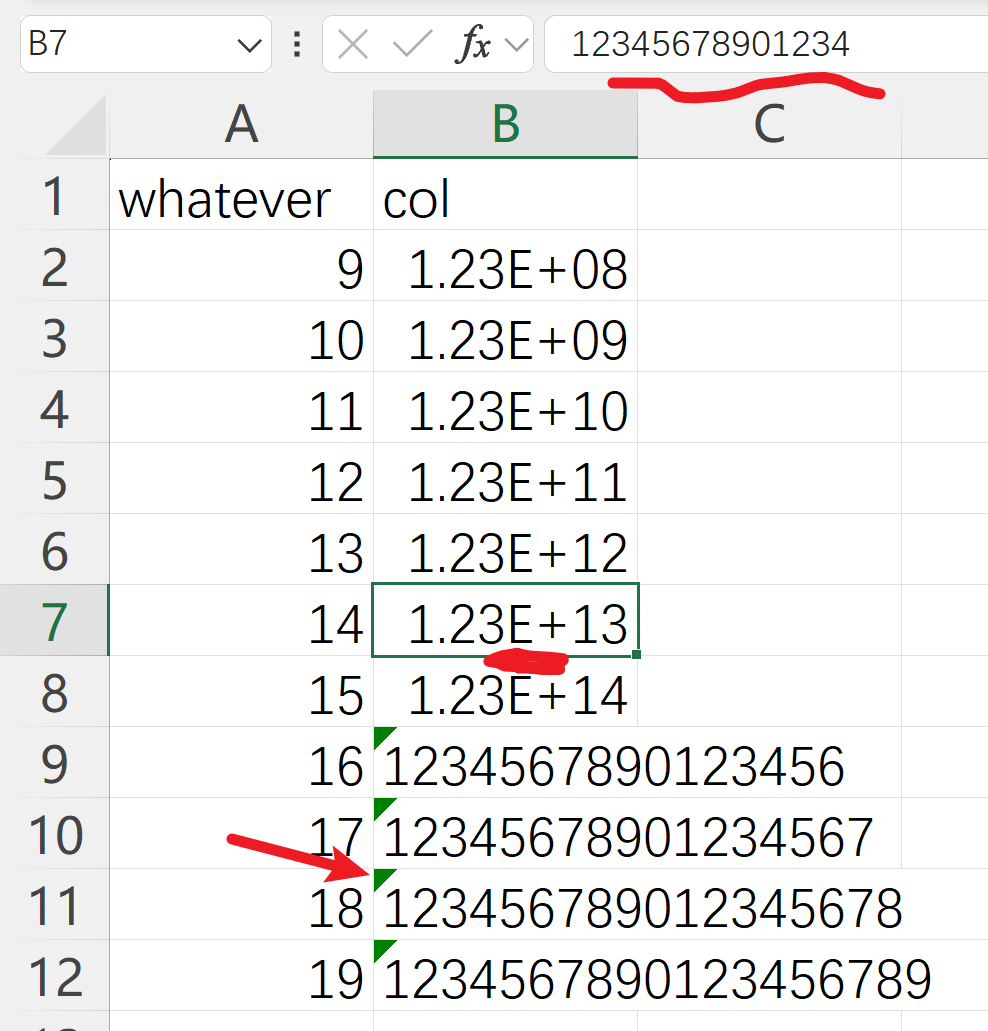
. First, when the integer has 16 digits or more, Excel takes it as a string, not an integer… Second, it use the scientific notation for large numbers, which itself is fine and no precision loss happens yet. Then we save it as a new .csv file, without no touch in any cell. We should expect an identical .csv file, but no… We get:
whatever,col
9,123456789
10,1234567890
11,12345678901
12,1.23457E+11
13,1.23457E+12
14,1.23457E+13
15,1.23457E+14
16,1234567890123456
17,12345678901234567
18,123456789012345678
19,1234567890123456789
. We permanently lose everything after the fifth significant digit. .csv is a plain text file, so no way to recover… Excel claims to have 15 significant digits, but NO!!! It’s only five digits in this example! This is well known problem, and I believe it is a “feature” not a “bug”, so won’t be fixed… See Numbers in csv-file longer then 15 digit are lost after importing CSV to Excel. - Microsoft Q&A and Numeric precision in Microsoft Excel - Wikipedia.
Style is data, and data is style
In almost all other proper data software, data is data, and display format is an entirely independent thing. When we change the number display format, the underlying data remains untouched. This is not true in Excel. Assume we have:
col
1234.56
1234.56
Let’s format cell A3 into “Accounting”, i.e. add thousands separator, and save it.
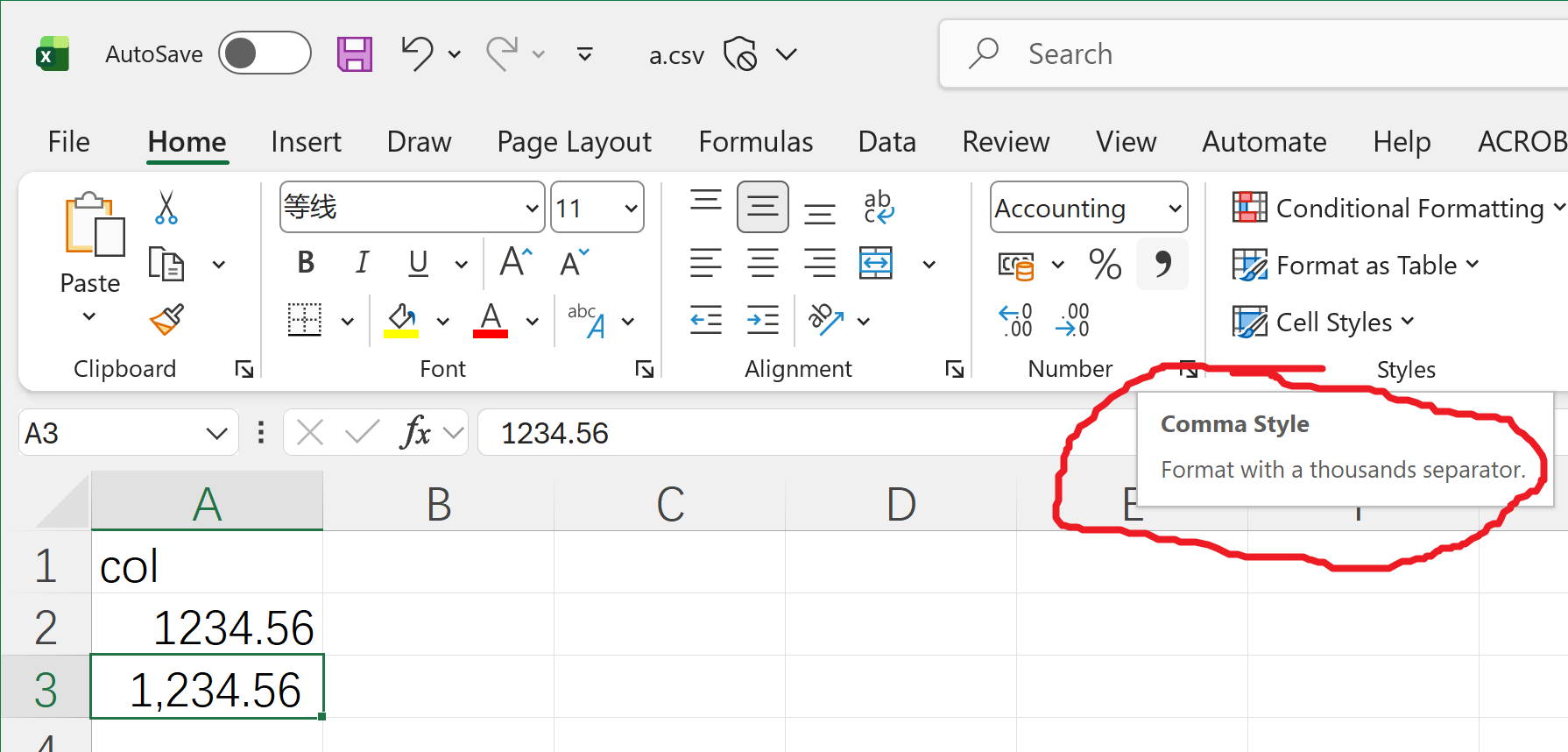
Now it becomes
col
1234.56
" 1,234.56 "
. Yes, Excel funnily converts a float into a string with padding and trailing whitespaces, for a style change…